FeaturesWP CloudPricingEE CLIContactMy Account
Features
Team Access & User Permissions
Install
Resources
Community
CLEAR
 Tutorials PHP APC Cache Optimization & Monitoring Using Web Interface
Topics
On this page
-
- Getting Started
- Git and File-System Layout (non-default setup)
- Version Constraints
- Managing Themes and Plugins (for entire WordPress site)
- Updating Themes and Plugins (for entire WordPress site)
- Adding Composer Support to Your Own Themes and Plugins (for developers)
- Using Composer to Manage Own Theme/Plugin Dependencies (for developers)
-
- Assigning Multiple IP Addresses to Single LAN Card
- Disable IPv6 on Ubuntu 12.04
- dsh – distributed shell
- fdupes – find & replace duplicate files with hardlinks
- GPG Keys Cheatsheet
- Increase "Open Files Limit"
- kill all php, nginx, mysql or any kind of processes
- Passwordless Authentication for SSH
- Screen
- search replace in multiple files useing grep xargs sed
- Setup sftp
- sysctl.conf
- Timezone Sync
- Using Google Public DNS on Ubuntu Server
- Using openssl to match private key, cerificate and CSR
- Configure Postfix to Use Gmail SMTP on Ubuntu
- Logrotate Example for Custom Logs
- PHP 5.5, MySQL, Postfix, Nginx and WordPress on Ubuntu
- Serverdensity
- Upgrade Ubuntu 10.04 to 12.04
- Using find and sed to replace strings in multiple files
- Webmin
-
- .my.cnf – mysql user & password
- Analyse slow-query-log using Anemometer
- Improving MySQL Query Cache
- MySQL Query Profiling
- Reset MySQL root password
- tuning-primer.sh – an alternative for mysqltuner
- Using MariaDB 10
- Install/Upgrade to MySQL 5.6 on Ubuntu 12.04 LTS
- Change WordPress Domain Name
- Character Sets and Collations
- Enable innodb_file_per_table
- Enable Remote Access (Grant)
- Installing Percona Toolkit
- Using tmpfs for temporary folder creation
- YARPP and InnoDB
- Convert MyISAM to InnoDB
- Using tmpfs for mysqldump & mysqlimport
- Convert from INNODB to MYISAM
- Analyse slow-query-log using mysqldumpslow & pt-query-digest
- mysqlcheck with cron to optimize automatically
- Using MySQLTuner to Optimize MySQL configuration
-
-
- Directly connect to PHP-FPM
- Generating core-dump for php5-fpm
- GeoIP
- Having php5 and php7 on same system.
- Install Xdebug and configure it with webgrind
- Installation of PHP Code Review Tools
- memcache
- PHP's Zend Opcache Config & Web Viewer
- Setting Sqlite support with PHP
- Using HHVM with PHP-FPM Fallback
- Using Redis for PHP Sessions on Ubuntu Server
- Installing PhpMyAdmin Quickly
- Moving PHP's session storage to tmpfs
- Install Xdebug and configure it with Netbeans
- Nginx – Enable PHP-FPM Status Page
- PHP-FPM: Socket vs TCP/IP and sysctl tweaking
- APC Cache Optimization & Monitoring Using Web Interface
- Checking if PHP/WordPress can send mails
- Debugging PHP Scripts Using slow_log and more
- Increase file upload size limit in PHP-Nginx
- Increase PHP script execution time with Nginx
-
- Performance Optimization
- Remove Query string of css/js files
- Setup ElasticSearch with ElasticPress
- Using Redis for WordPress Object-Cache
- WooCommerce Window Shopping Caching Technique
- Moving WordPress To New Server (Faster)
- Better wp-cron using linux's crontab
- 404 error- Page not Found!!!
- Debugging WordPress with Nginx
APC – Web-based User Interface
APC Cache Configuration
APC & WordPress + WP3 Total Cache
More:
APC Cache Optimization & Monitoring Using Web Interface
While we installed PHP with other things, we also installed a php-apc package.
APC is one of the most popular caching mechanism for PHP’s op-code caching. Once activated, it starts caching PHP codes automatically. It also works nicely with W3 Total Cache plugin for storing Object & MySQL caches.
APC – Web-based User Interface
Its always better to check if APC is working correctly. Thankfully, APC comes with file apc.php, which provides a simple web-based interface. Just copy it to your site’s web-root folder:
cp /usr/share/doc/php-apc/apc.php /var/www/example.com/htdocs
Then open http://example.com/apc.php in browser.
In case you want to use admin-side of apc.php, you will need to change default password to something else.
Just open apc.php file and edit following line:
defaults('ADMIN_PASSWORD','password'); // Admin Password - CHANGE THIS TO ENABLE!!!
You can change a few more defaults to customize web-based UI as per your needs.
APC Cache Configuration
You can tweak APC’s parameter by editing vim /etc/php5/conf.d/20-apc.ini (if you have installed PHP this way). In other cases, you can simply add following values to your php.ini
If apc.php is showing miss-rate above 10%, the chances are high that you need to change value of some APC configuration option.
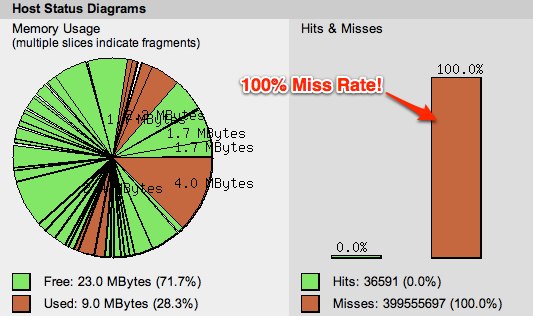
There are many APC configuration options, but I recommend making changes to the following:
Total RAM storage allocated for APC (default is 32 MB)
apc.shm_size=1024M
Maximum size of a single file APC can store (default is 1MB)
apc.max_file_size=10M
Number of op-code “files” APC can store (default is 1000)
apc.num_files_hint=20000
Number of data entries APC can store (default is 4096)
apc.user_entries_hint=20000
Once you are done with tweaking, you need to restart PHP. Command: service php5-fpm restart
APC & WordPress + WP3 Total Cache
If you are using W3 Total Cache plugin, then you must make use of APC for Database Cache and Object Cache.
Check following screenshot:
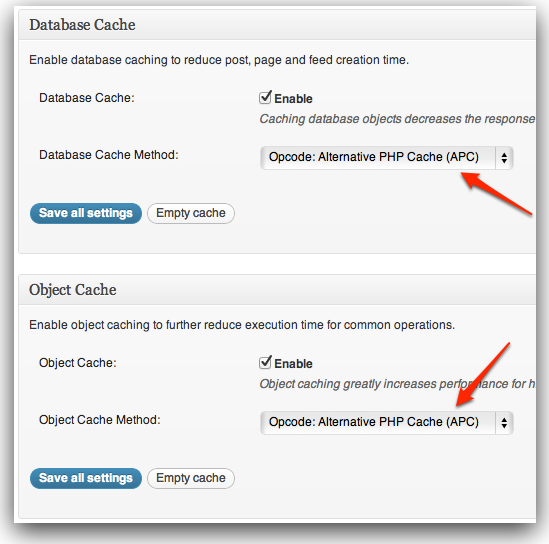
Note: W3 Total cache will offer APC storage option for Page Cache and Minify Cache also. Do NOT use it. “Disk enhanced” is better for Page Cache & Minify Cache.
There are many caching engines available for PHP but I like APC for its simplicity. Also APC will be official caching mechanism for PHP 6 (someday…)
More:
PHP-FPM: Socket vs TCP/IP and sysctl tweaking
PREVIOUS
Checking if PHP/WordPress can send mails
NEXT
Comments
-
Is it ok to enable page cache on w3tc if I have Nginx fastcgi cache enabled?
-
There is no reason to enable both. Depending on nginx config either fastcgi or w3tc cache will be used. Not both.
-
-
Hey there,
Up to now, the following is wrong:
apc.shm_size=1024The apc.shm_size parameter has to be extended with a size unit, e.g. M or G:
apc.shm_size=1024Mor
apc.shm_size=1GThanks!
-
@Pascale
Thanks for pointing it out. I will update it now. 🙂
What I used was old-syntax. Its not wrong. It still works but generates warning.
-
-
In your final note you mention not to use Opcode APC for Page cache. But when I use “Page cache: Disk Enhanced”, my SSL sites break, and the style sheets aren’t loaded. APC option seems to be working, can you elaborate on why I shouldn’t be using it, or how I might solve the SSL problem with Disk Enhanced? Thanks for the excellent tutorials.
-
“Page cache: Disk Enhanced” is better because through APC-based cache, every page request will require a PHP call.
-
-
i’m sorry, that was browser cache that i was having problems with, and it seems o be resolved. you can delete my comments here. thanks.
-
Are you sure about values for
apc.shm_sizeand espaciallyapc.max_file_size. Most webservers for small blogs don’t have so much RAM, that they can reserve 1G only for APC. Like my V-Server only has 1G running a multisite installation. I have only 96M fpr APC and even the caching plugin (Cachify) stores it’s values into APC, my cache is only 50% filled. Even though giving APC lots of RAM lowers the RAM usage of the Apache processes, I would save enough RAM for other processes like Apache and MySQL-I also wouldn’t recommend to set the max_file_size to such a high value (unless you really have 1G for APC). The largest file in the WordPress core ist only like 180K, so even the default value of 1M is more than enough.
-
In above tutorial
apc.max_file_sizeis 10M not 1G.Most of our server and our client servers have minimum 32GB RAM. Of course, these configuration should be modified based on individual needs.
In our case, we used to host wordpress, activecollab and many other apps. APC was used for opcode-caching as well as user-data cache. I think
apc.max_file_sizelimit applies for user-cache data as well.By the way, we have now moved to PHP 5.5’s builtin zend opcache – http://rtcamp.com/wordpress-nginx/tutorials/php/zend-opcache/ and for data-store we are using memcache – http://rtcamp.com/wordpress-nginx/tutorials/php/memcache/
-
-
Hi Guys,
I have centos server and php 5.4.22. I am facing some problem with the file cache info. while User Cache Information is working perfectly. as soon as I installed the apc and updated the settings, I got 100% green bar and 0% misses. Is this correct? below is the setting that I have used so far. Please help me to correct it so that file caches also start working.
apc.enabled=1
apc.shm_segments=1
apc.optimization=0
apc.canonicalize=1
apc.serializer=DEFAULT
apc.shm_size=64M
apc.shm_strings_buffer=3M
apc.ttl=0
apc.user_ttl=7200
apc.num_files_hint=1024
apc.mmap_file_mask
apc.mmap_file_hint=1024
apc.mmap_file_mask=/tmp/XXXXXX
apc.enable_cli=0
apc.max_file_size=3M
apc.cache_by_default=0
apc.rfc1867_name=APC_UPLOAD_PROGRESS
apc.rfc1867_freq=0
apc.rfc1867_ttl=3600
apc.lazy_classes=0
apc.lazy_functions=0 -
I am no longer using APC. We switched to zend-opcache starting from PHP 5.5 – http://rtcamp.com/tutorials/php/zend-opcache/
However, it’s possible to have 100% hits if nothing is getting modified on your server. Like a single-user blog using 3rd party commenting system.
You can inspect what is cached in APC using web-viewer. There are two big buttons with text “System Cache Entries” and “User Cache Entries” for file-cache and user-cache. respectively.
You can also comment out your custom APC config and switch back to default APC config. It might make a difference as well.
-
I am new to using APC. I have set apc.shm_size as 64M. I’m confused what could be the right value for apc.ttl value for a websies which gets hardly 200 visitors per day?
-
I think you can leave it default. Size and TTL are not dependent on each other. Size controls how “much” you can cache and TTL controls how “long” you can cache!
-
-
Hi,
where to download the apc.php web interface? The php5-apc package of Debian does not have anything but the changelog in /usr/share/doc/php5-apc/.-
Use find command to search.
We have stopped using APC. We now use zendcache – https://rtcamp.com/tutorials/php/zend-opcache/ and memcache – https://rtcamp.com/tutorials/php/memcache/
-


Features
- Server Setup & Management
- Site Creation & Management
- Create WP Cloud Sites
- Speed & Caching
- Firewall Protection
- Backups & Recovery
- Logs & Monitoring
- Deployments & Developer Tools
- Team Access & User Permissions
Useful Links
Product
Other Products
Subscribe for curated product updates, tips, and announcements.
"*" indicates required fields
This field is for validation purposes and should be left unchanged.
Email*
SIGN ME UP
Δ
© rtCamp, since 2009. All rights reserved.